To read a scene setting from a JUNO-D, we typed sysex data request 1 (rq1) scene common into the MIDI Debugger and pressed Send. A 63-byte reply came back, and it read “Temporary Scene / Scene Common”, by name.
The MIDI Debugger is a screen where you build a MIDI message in an input field, send it, see what you sent and what came back side by side in one list, and read either one by selecting it. Sending, watching and reading happen on one screen, and the knowledge about each device comes from device definitions. Name completion and the decoding of incoming messages use the same definitions and the same decoder as the monitor.
Building a message
At the bottom of the screen are the destination, the channel, the input field (CLI) and a HEX field. In the input field you write a message as a short command:
note on C4 100
cc 74 96 ch2
nrpn 0:36 8
sysex data request 1 (rq1) scene common
The commands are note, cc, pc, pb, cp, pp, rpn, nrpn, sysex, panic and reset. As you type, candidates appear just above the input field. Tab or a click accepts one, and choosing a candidate never sends anything.
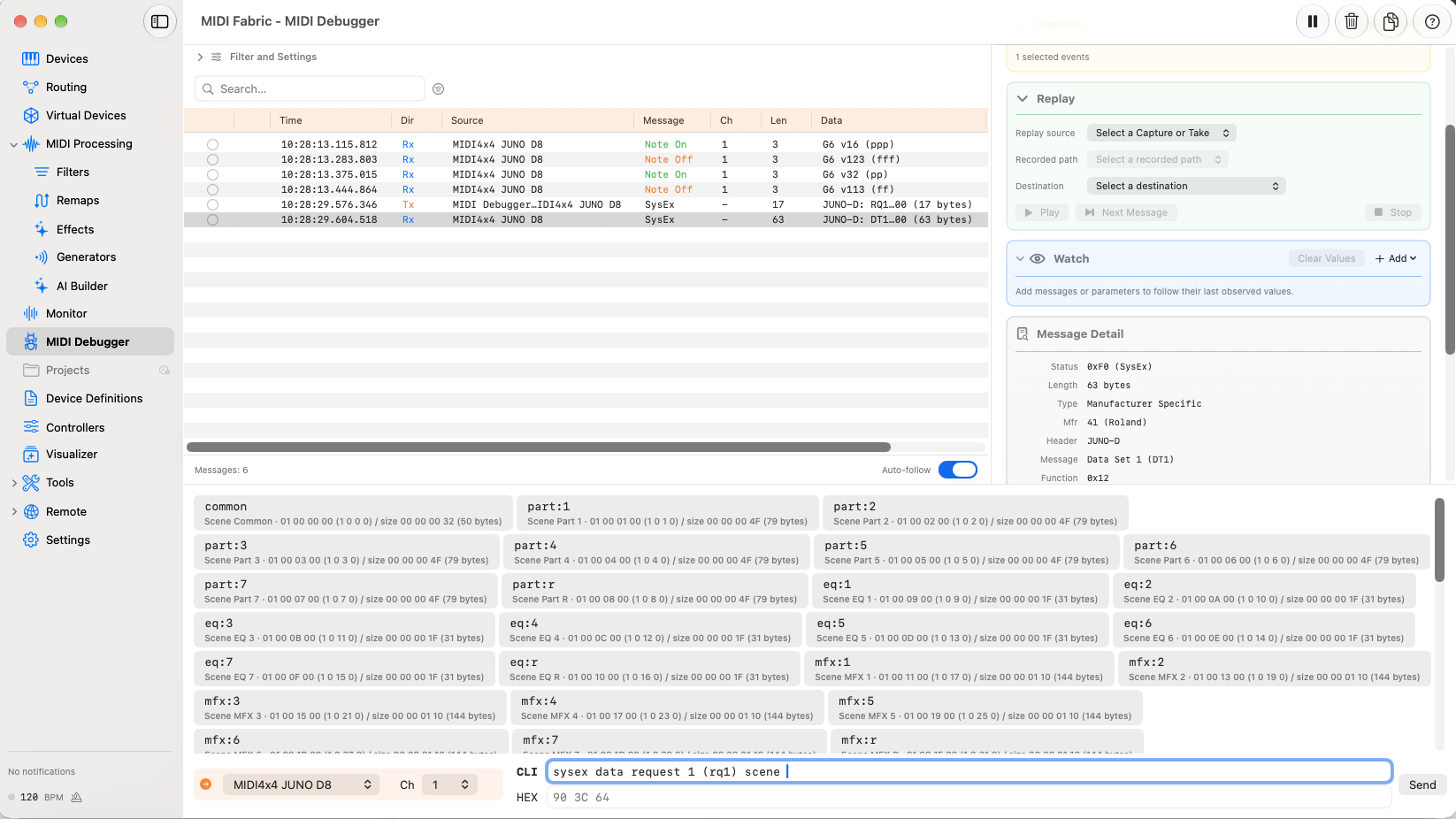
The candidates come from the device definition assigned to the destination:
- Note names and values. Notes can be typed as names from C-1 to G9 (C4 = 60), and values accept
min,centerandmax. - CC, RPN and NRPN names. You can type the names from the definition, and plain numbers still work.
- SysEx. Besides the common messages, the destination’s own messages and the areas and blocks of its address map appear. In the screenshot, the JUNO-D’s scene areas are listed with their addresses and sizes.
What you type is shown as bytes in the HEX field right below. You can also write bytes directly in the HEX field and send them.
Sending
Pressing Send sends the message. An NRPN becomes four CCs and a long SysEx several packets, but either way it is accepted as one action, all together. If it cannot be accepted, because of an input error or a problem with the destination, nothing is sent rather than only part of it. Bytes a device needs, such as the Roland checksum, are added as the definition says.
Accepting a send, actually sending it and the device’s reply are treated as separate things. A Tx row in the list is an observation of what was actually sent, not a row the app made up because the send “should have” worked. Input errors and send failures are reported in a dialog.
Reading the reply
Messages you send and messages that arrive go into the same list, with columns for time, direction (Rx / Tx), source, type, channel, length and data. In the example above, the 17-byte RQ1 appears as Tx and the 63-byte DT1 as Rx right after it.
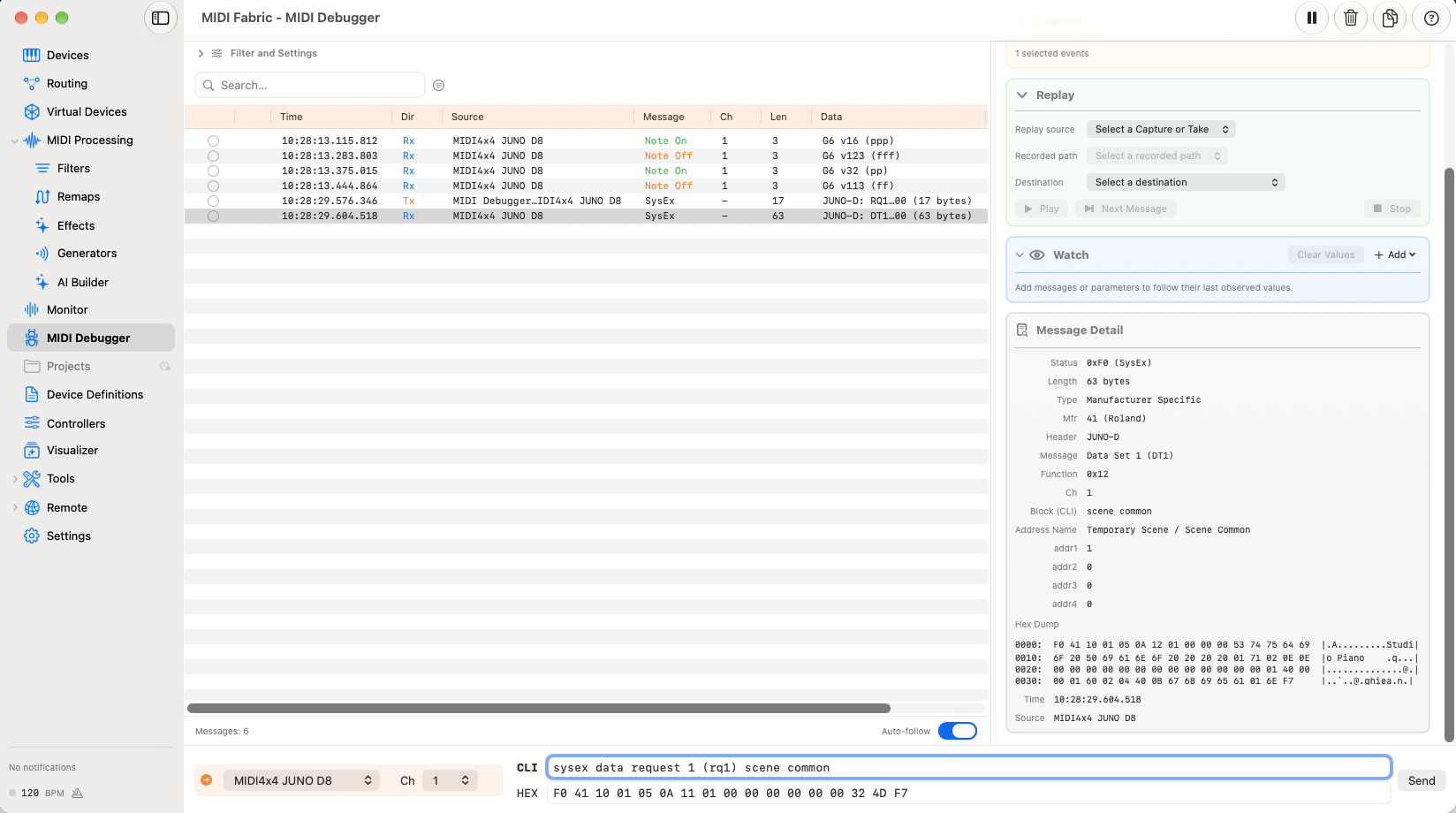
Selecting a row shows its contents in Message Detail on the right. For a DT1, that is the manufacturer, the model, the message type, the address and its name (“Temporary Scene / Scene Common”), and a hex dump of the whole message. The hex dump also shows the bytes as text, so here you can read the scene’s name, “Studio Piano”.
Decoding uses the same code as the monitor; there is no separate decoder for the MIDI Debugger. A message that gets a name in the monitor gets the same name here.
Comparing and watching
- Compare. Select two messages in the list, and their bytes are lined up position by position, with differing bytes in red, along with the number and share of differences and the difference in length. It does not shift positions to look for inserted bytes.
- Watch. Register items such as CC 74 or Pitch Bend, and their latest value and time stay visible while the list scrolls on. If observations were lost, the value is shown as uncertain instead of being treated as known.
- Channel State. For the channel of the selected message, it shows the notes still held, Bank Select, Program, Pitch Bend, Sustain and other latest observed values. It shows only what was observed and does not guess the device’s state.
Recording and sending again
Record captures what goes to and from the devices you choose, and you can save it as a Take. Replay sends messages you pick from a recording again, to a destination you choose, either all at once or one at a time. You can, for example, send the same request again when no reply came.
What it does not do yet
- There are no macros for sending several messages in a row, and no repeated sending at a fixed interval yet.
- It cannot yet split the data in a DT1 into individual parameter values. For now it goes as far as the names of areas and blocks.
Why we built it this way
Investigating MIDI is a loop: send a message, check what comes back, change it a little, send again. When sending and watching are separate tools, you keep switching between them and matching what you sent with the replies yourself. The MIDI Debugger puts that loop on one screen.
The other choice was not to build knowledge about devices into this screen. The names in completion and the names in decoding both come from device definitions, so fixing a definition changes both the monitor and the MIDI Debugger. That idea is described in How CC 102 became “OP1 Level”, and how the JUNO-D address map is written in Sending and reading JUNO-D SysEx by name.