Connect MIDI devices without opening a DAW.
Use your Mac to route a keyboard to a synth or sound module. MIDIFabric runs as a standalone app. Your hardware must expose MIDI ports recognized by macOS, directly or through a compatible MIDI interface.
A MIDI app for Mac · Coming Soon
Your MIDI Playground
Connect your MIDI gear. Create your own ways to play.
MIDIFabric is a standalone app for MIDI routing, effects, monitoring and debugging on Mac. The first release is planned for Mac; MIDIFabric is not yet publicly available.
Playground
Put effects between a keyboard and a synth. Send a running pattern to an instrument. Take MIDI from a DAW out to your hardware. Devices, effects, and generators share one canvas, ready to connect and explore.
Use your Mac to route a keyboard to a synth or sound module. MIDIFabric runs as a standalone app. Your hardware must expose MIDI ports recognized by macOS, directly or through a compatible MIDI interface.
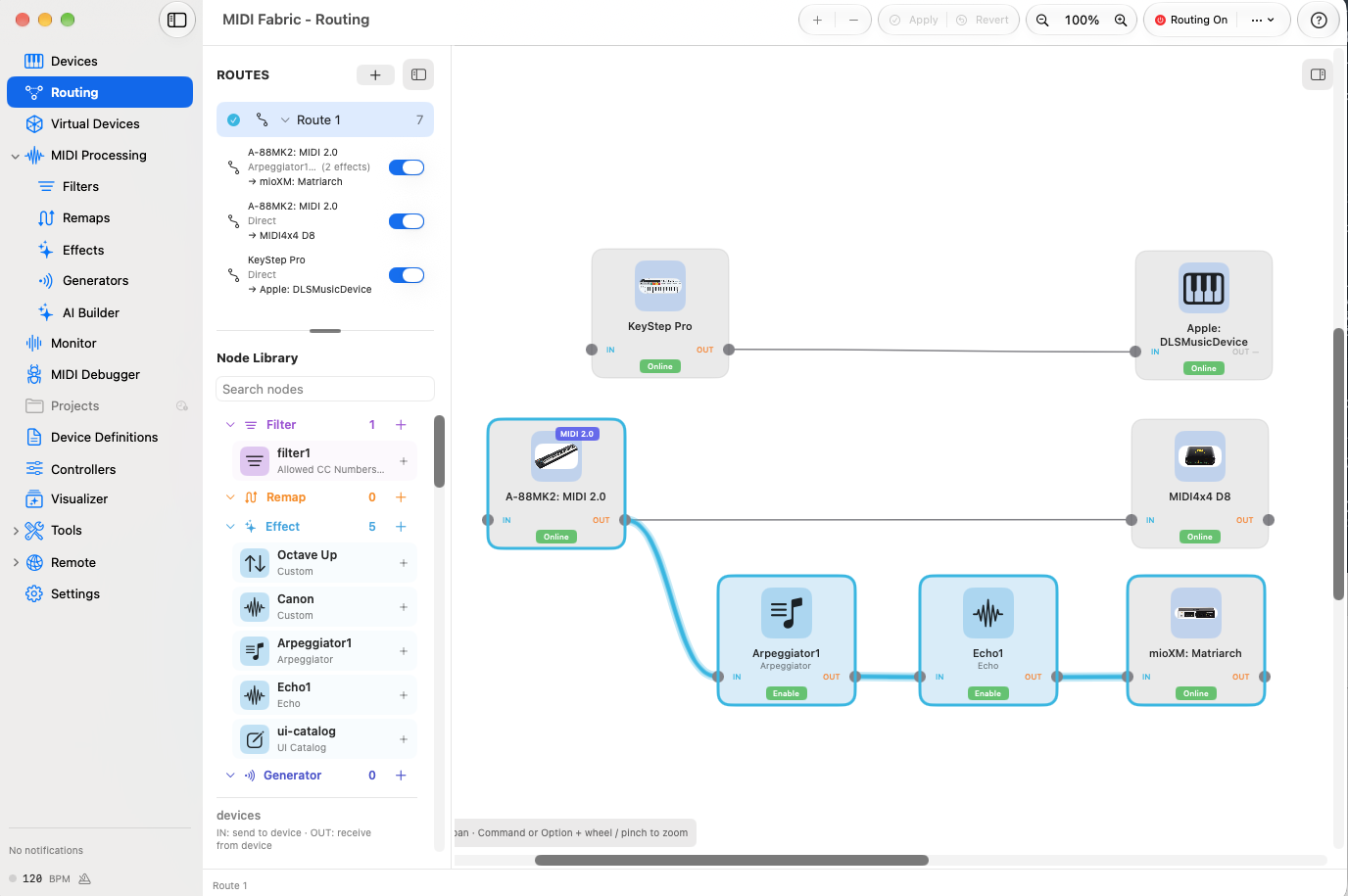
Branch one MIDI input to several destinations. Add a filter on a branch to select messages by channel, note range, velocity, or CC, or insert effects to change that branch's performance. In the screenshot, A-88MK2 connects directly to MIDI4x4 D8 and also through Arpeggiator and Echo to mioXM: Matriarch.
Turn held notes into motion with Arpeggiator, then add repetitions with Echo. Change the order and settings to give the same synth a different way of playing.
Use MIDIFabric's virtual MIDI ports to connect a DAW or another music app to your hardware. The other app must support MIDI input or output: select a virtual port there, then connect it to your device in Playground. Route messages from your gear back to an app through the corresponding virtual input.
A routing example: split one keyboard between a direct output and an effects chain.
Explore the connections. Find the way you want to play.
You can build the effects and sequencers themselves, too. →
Lua effects
Which notes to choose, when to send them, which values to send to your gear. Write those rules in Lua to create effects and sequencers around the way you play. Start by changing an included effect, or build something your Library doesn't have yet.
Use note range, playing strength, and held notes to change pitch, velocity, or MIDI channel. Decide which inputs to respond to, and what to play in return.
Create sequences of notes and changing CC values. Define how to choose the next note, when to send it, and what changes with each repetition.
Put the values you want to change on knobs, sliders, and grids. Build the processing and its control panel together, so you can adjust your tool as you play.
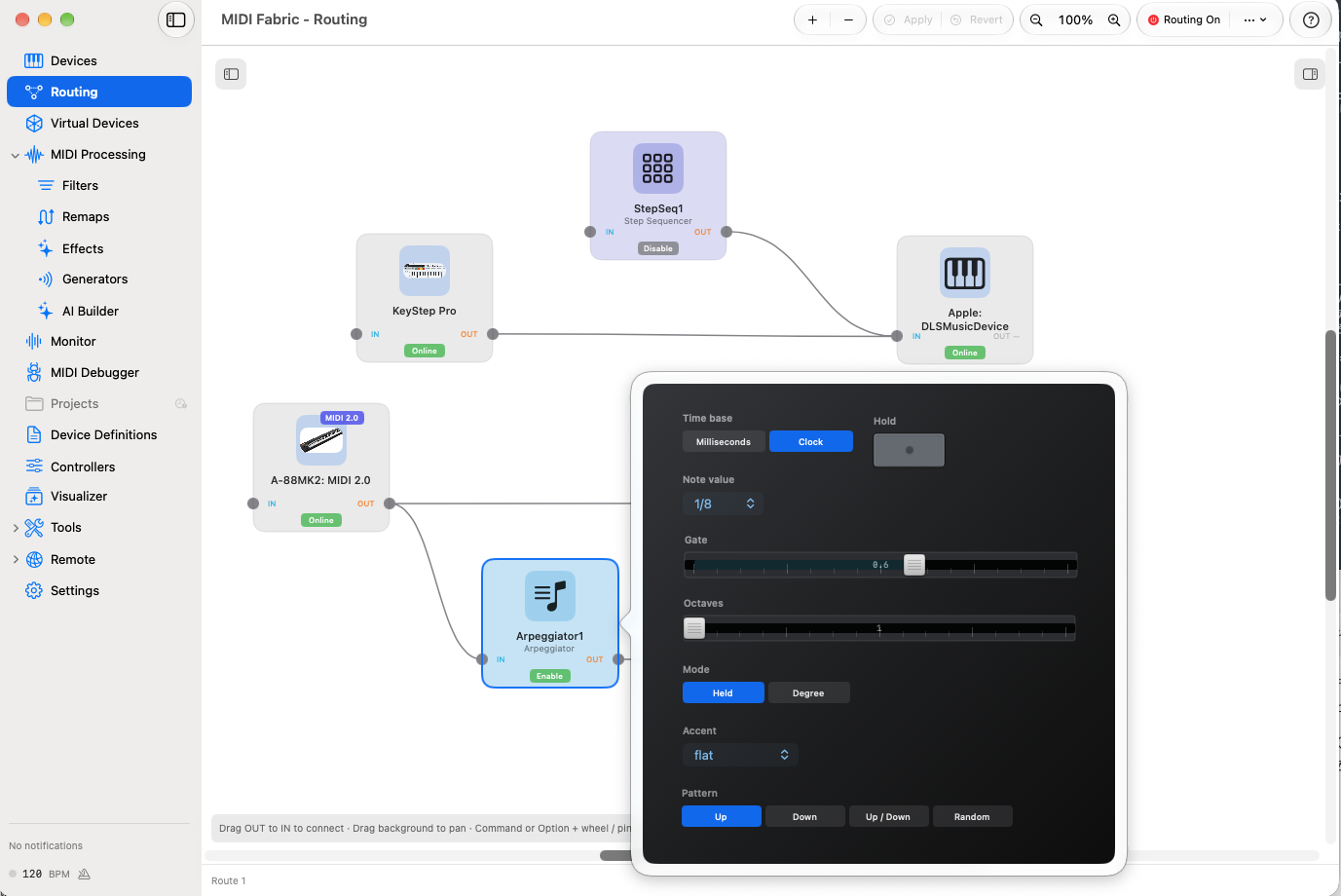
For example, you could design an effect that gives softly played notes a short response and harder strikes a longer series of repeats, with a knob to change the pitch of each repeat. Start with that idea, then combine input handling, timed notes, and adjustable controls in Lua.
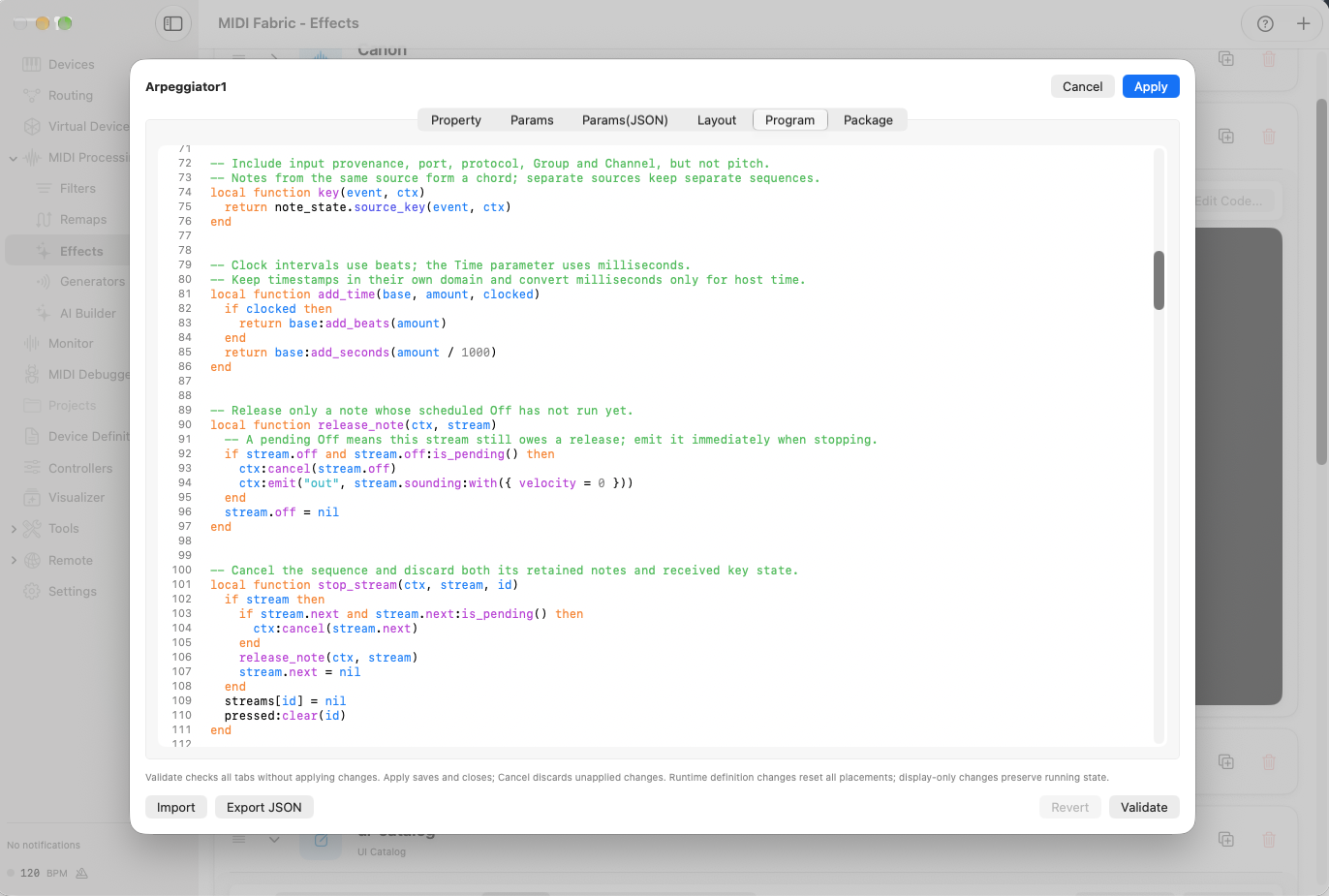
The factory effects are written in Lua, too. Read their code, learn how they work, and adapt them, or write your own rules from scratch. Place your tool in Playground and connect it to your instruments and other processors.
Have an idea, but writing the code feels out of reach?
AI can help you turn that idea into a tool. →
AI Builder
You don't need programming expertise to start describing what you want. Work with AI to create a Lua effect, try it with your gear, and refine what you hear. Put AI to work helping you build your own tools.
“Make an effect where harder playing produces a longer series of repeats.”
Start with how you want to play. The AI can consult MIDIFabric's Lua authoring documentation and submit a candidate with code and a control panel.
“Shorter repeats when I play softly. And add a knob for the pitch change.”
Apply the candidate and play it with your instruments. Describe how it feels, then discuss changes to the processing and its controls.
“How does this Lua turn playing strength into a repeat count?”
A connected AI can read the applied code, too. Ask how it works, read it yourself, and use that understanding to take it further.
For example, a conversation could start with an idea and continue through changes and questions about the code.
Ask “Show me the effects registered in my Library” to find a starting point. Discuss how an existing Lua script works. Whether you create something new or change a familiar tool, the conversation can draw on your actual Library and code.
Revisions preserve the existing effect and its connections. Review and apply changes manually by default, or opt into automatic registration and updates after validation. Updating a running effect changes its behavior.
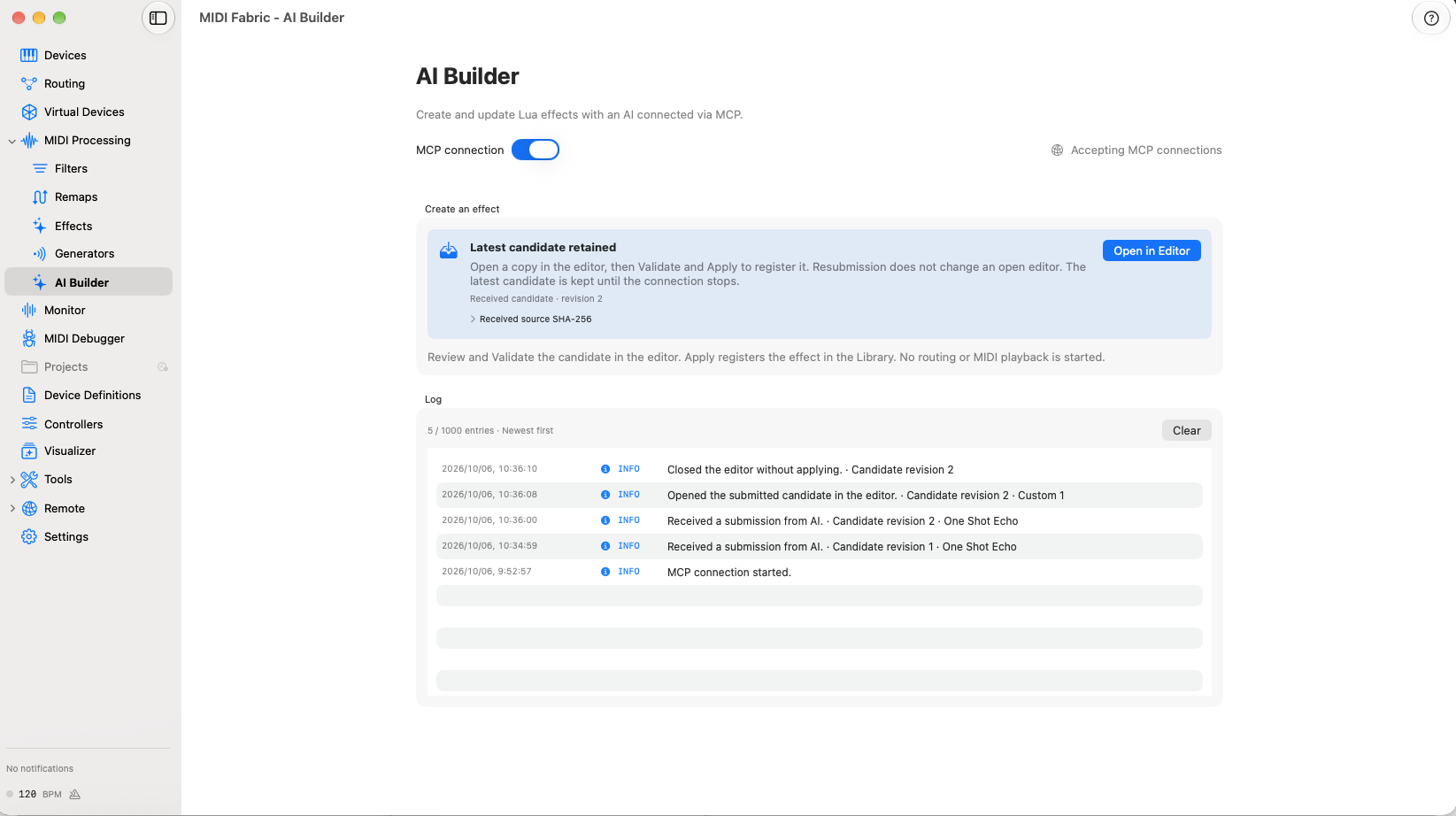
Connect to OpenAI Codex or Claude Code on your Mac through MCP; the conversation happens in the AI client. Bring your own AI client and account.
Monitor + MIDI Debugger
See what a knob sends. Try the same message again. Find which bytes changed between two settings. Go beyond watching MIDI traffic, with the tools to test and investigate it in one place.
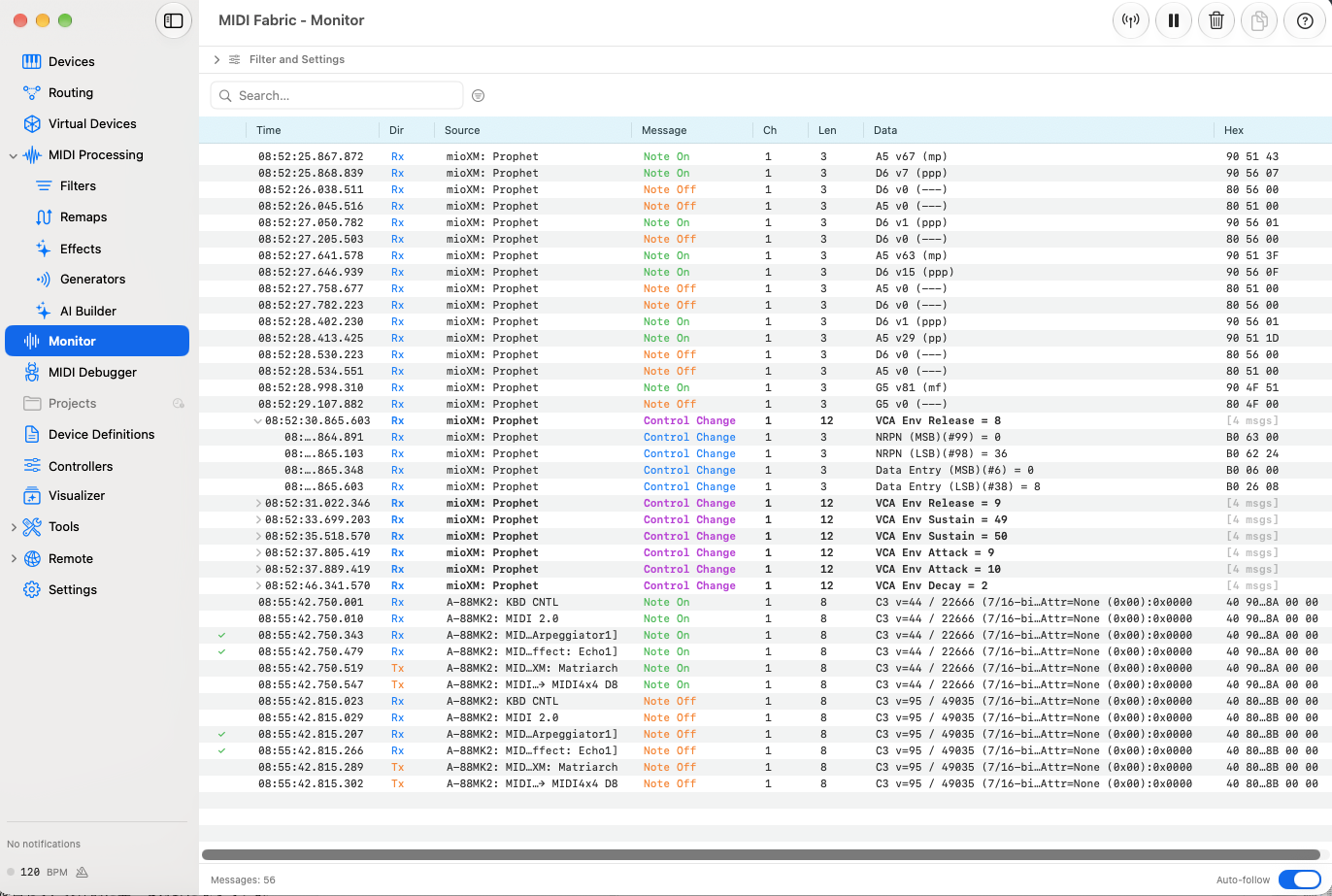
See input and output in the monitor. Inspect message details and full HEX in MIDI Debugger, and follow selected items' latest observed values with Watch.
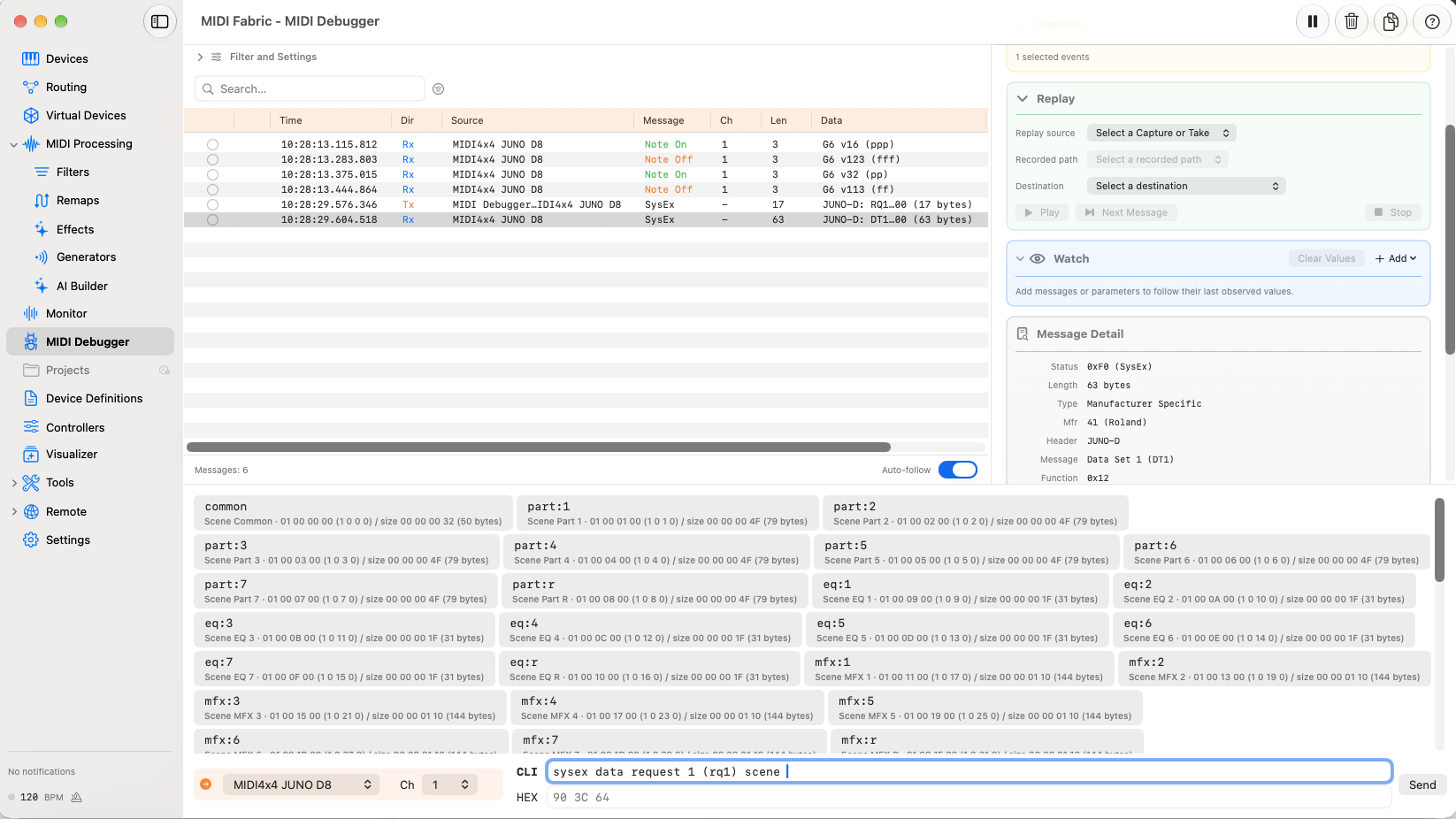
For supported messages such as notes and CCs, use input completion to choose note names and arguments instead of assembling hexadecimal bytes. Review the generated message, then send it and see how your instrument responds.
Record traffic and save selected messages. Choose a destination and send them again, or step through them one at a time.
Compare two messages side by side with differing bytes highlighted. Inspect long SysEx messages without matching every character by eye.
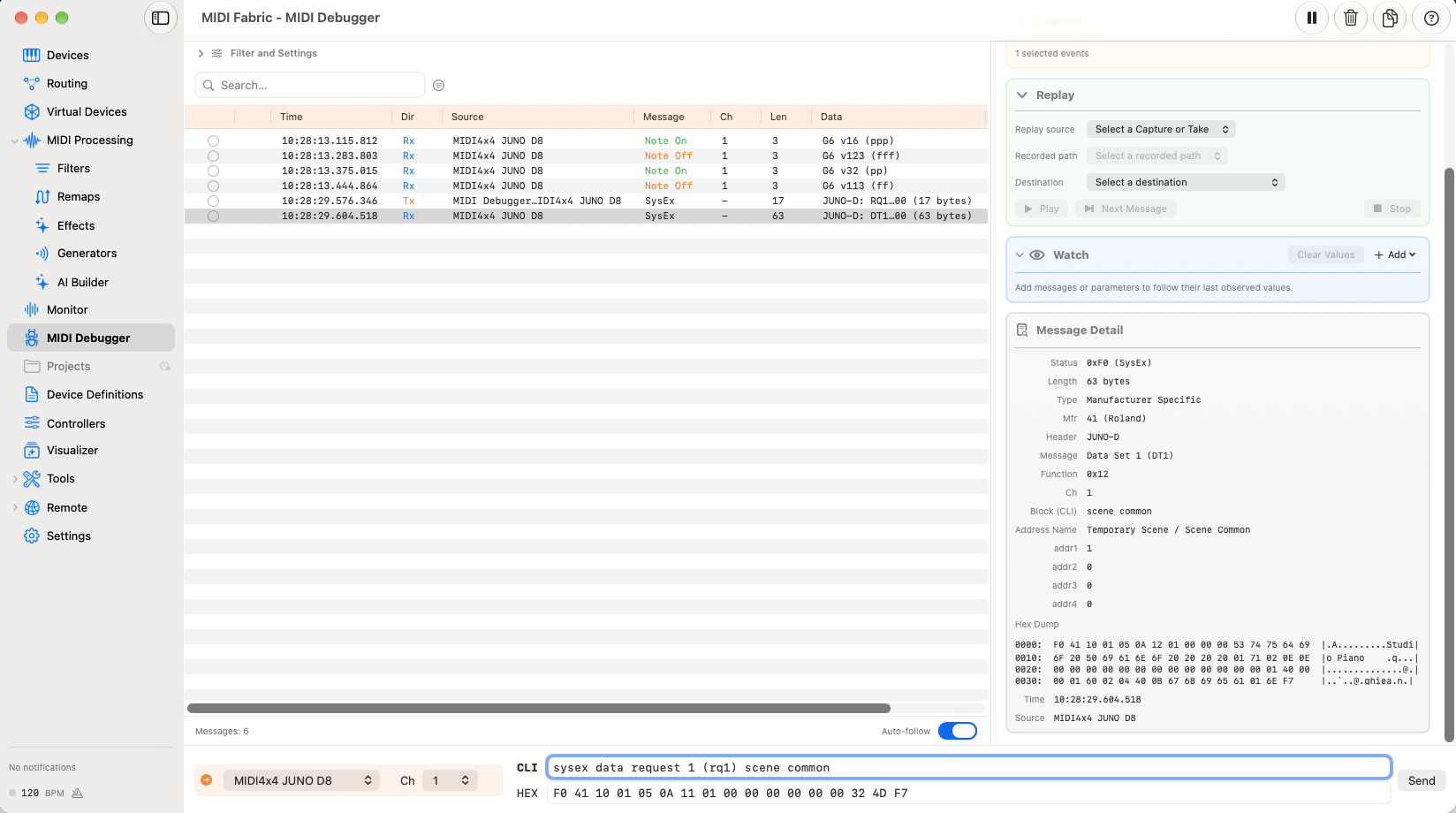
Use CLI input with completion suggestions to select instrument-specific items and send messages. This example requests Scene Common data from a JUNO-D and shows the returned SysEx in the message detail panel. When sending SysEx to a JUNO-D through the CLI, the checksum is calculated automatically, so you do not need to enter it manually.
For items supported by a Device Definition, type a name or choose a suggestion. Review the generated message before sending, without assembling hexadecimal bytes by hand. Available suggestions and named operations depend on the Device Definition.
Which knob on your instrument does that number in the monitor represent? Add a Device Definition to see instrument-specific parameter names.
Those names also appear as completion suggestions when composing messages in MIDI Debugger.
Define and edit your instrument's parameter names and the meanings of its values. Copy a bundled definition or create your own; the monitor's decoding and Debugger's input completion use those definitions.
Ch 1 › CC 99 = 0 (NRPN MSB)
Ch 1 › CC 98 = 36 (NRPN LSB)
Ch 1 › CC 6 = 0 (Data Entry MSB)
Ch 1 › CC 38 = 8 (Data Entry LSB)
The parameters available by instrument-specific name depend on the contents of the Device Definition.
Features
These features describe the app under development for Mac. MIDIFabric has not been released; the final feature set and system requirements will be confirmed at release.
Planned at release · 14-day demo and in-app purchase
At release, we plan to offer a 14-day demo of all features, followed by an in-app purchase (IAP) of all features for continued use.
Playground, effects, AI Builder, and MIDI Debugger. Find out how they fit your instruments and the way you work.
Continued use after the demo requires purchase. There is no permanent free tier. Access to external AI services is separate.
MIDIFabric is in development and not yet released. Downloads, purchases, and demo activation are not yet available. Pricing and the store link will be announced at release.
Release dates and supported OS versions have not been announced. Features on other platforms may differ from the Mac version described here.
Screenshots show the development version. Custom-effect ideas and example conversations illustrate what you could create; they are not included effects or performance demonstrations.
Follow MIDIFabric development and release news.